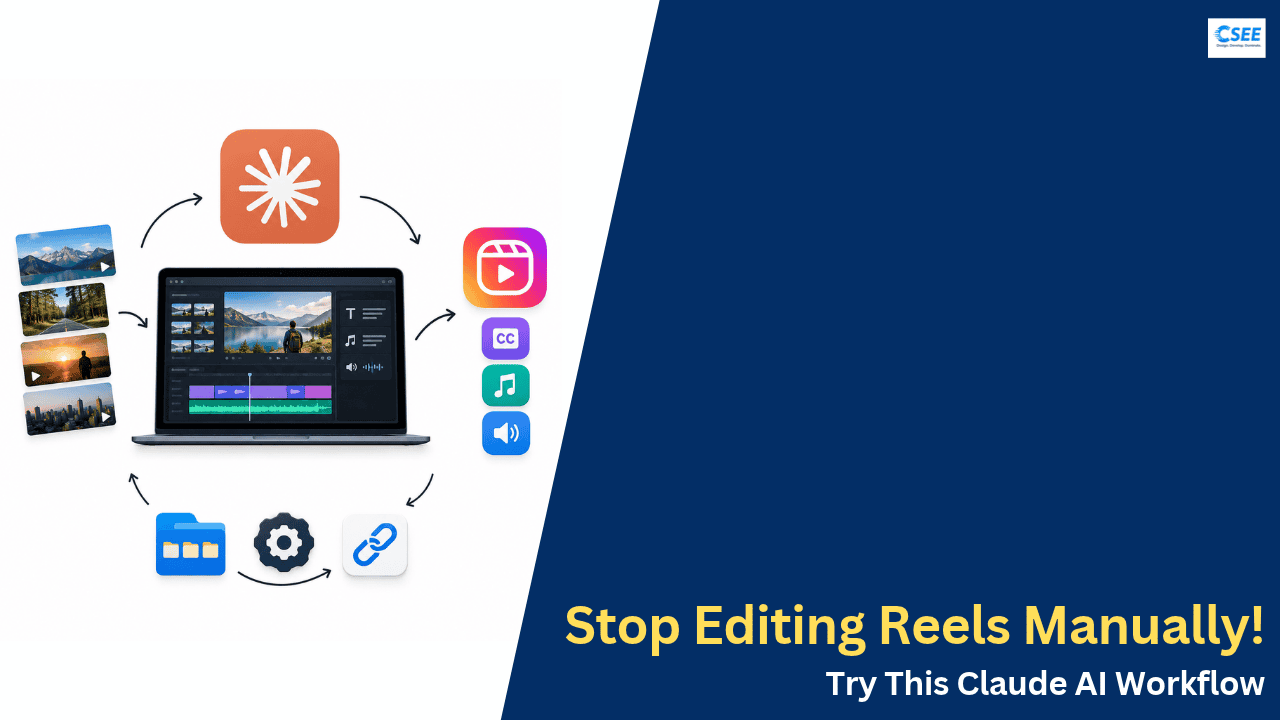
I edited my whole reel with Claude. Here is every step.
The complete playbook behind the reel: the exact folder setup, the free tools Claude installs for you, the prompts that teach it your editing style, and the master prompt that cuts, captions, scores and mixes your video. Written so a first-timer can follow it from start to finish.
Before you start
When I posted the reel, the caption listed seven short steps. A caption can only hold so much, so this page is the long version. It explains what each step does, why it matters, what can go wrong, and exactly what to type. If you follow it top to bottom, you will end up with the same setup I used: a folder on your computer where you drop a raw phone recording, type one prompt, and get back a finished vertical video with the dead air removed, word-by-word captions, background music that dips under your voice, and a few well-placed sound effects.
The idea that makes this work is simple. Claude does not have a video editor built into it. What it can do, through the Claude desktop app, is work inside a folder on your computer and run real programs there. So instead of dragging clips around a timeline yourself, you install a small set of free, professional-grade command-line tools, and Claude operates them for you. It reads your transcript, decides what to cut, writes the caption file, mixes the audio, and renders the final MP4. You describe the result in plain language and review it. Claude does the button-pushing.
Here are the seven steps at a glance. Each one has its own full section further down the page.
Every grey-and-black box with a red dot is a prompt you paste into Claude. Boxes with a green dot are commands shown so you can see what Claude runs behind the scenes. You never have to type the commands yourself; they are there so nothing feels like magic. Each box has a Copy button.
How the whole system fits together
It helps to see the moving parts before touching anything. There are only four: you, the Claude desktop app, one folder, and a handful of tools that live on your computer. Claude sits in the middle. It reads files from the folder, runs the tools on them, writes new files back into the folder, and talks to you about what it did.
Two things are worth noticing in that picture. First, the arrow between Claude and the folder goes both ways: Claude reads your raw clips and reference videos, and it also writes transcripts, caption files, edit lists, and finished videos back. Second, the tools are ordinary programs. FFmpeg is the same engine that sits underneath a lot of commercial video software. Whisper-style speech recognition is what many caption apps use. By running them directly, you get professional results without paying for an editing app.
You will also see a Work folder in the diagram. You only create three folders yourself (Raw, References, Export). Claude creates Work and a few others during setup, as a scratch space for intermediate files, so your originals and your finished exports stay clean.
What you need
None of this needs a powerful editing machine, but some things make it smoother. The table lists the minimum I would recommend, and what I would recommend if you plan to edit several videos a week.
| Item | Minimum | Comfortable | Why it matters |
|---|---|---|---|
| Computer | Mac (Apple Silicon or Intel) or Windows 10/11, 8 GB RAM | 16 GB RAM, Apple M-series or a recent Intel/AMD chip | Transcription and rendering run locally. More RAM means larger, more accurate transcription models. |
| Free disk space | 10 GB | 30 GB+ | Tools and speech models take 2 to 5 GB. Each 1-minute 4K phone clip can be 300 to 500 MB, and the Work folder keeps intermediate copies. |
| Claude plan | Claude Pro | Pro, or Max if you edit daily | Local file work in the desktop app needs a paid plan, and editing sessions use a fair amount of usage. |
| Internet | Any broadband for setup | Same | Needed to install tools and download the speech model once. Editing itself runs on your machine. |
| Phone | Any phone that records 1080p | Shoots 4K, plus a clip-on mic | Clean audio matters more than resolution. Better audio means better captions and cleaner cuts. |
| Admin access | Yes, once | Yes | Installing FFmpeg and Python may ask for your computer password one time. |
Everything else in this guide is free. FFmpeg, Python, faster-whisper, auto-editor, and PySceneDetect are open-source. Music and sound effects can come from free libraries I list in Step 7. The only paid item is the Claude subscription.
Get Claude Pro and install the desktop app
The browser version of Claude at claude.ai is great for writing and thinking, but it cannot reach into a folder on your computer and run a program there. The desktop app can. That single difference is why this whole workflow depends on the desktop app. Your video files stay on your machine, and Claude works on them in place.
1.1 Choose and buy the plan
Go to the Claude upgrade page while signed in and pick Pro. According to Anthropic’s help center, Pro costs $20 per month in the US, shown in your local currency where supported, and some regions add tax at checkout. There is also an annual option that works out to about $17 per month. If you are in India, the upgrade page will show you the exact rupee price for your account before you pay, so check it there rather than relying on a converted figure.
| Plan | US price | Good for | For this workflow |
|---|---|---|---|
| Free | $0 | Trying Claude, short chats | Not enough. Local folder work and long agent sessions need a paid plan. |
| Pro | $20/mo or ~$17/mo yearly | Daily personal use | The right starting point. Comfortable for a few reels a week. |
| Max | from $100/mo | Heavy daily use | Worth it only if you edit many videos a day and keep hitting usage limits. |
Links you need:
- Upgrade to Pro: claude.ai/upgrade
- Plan comparison: claude.com/pricing
- Help center (pricing, limits, billing): support.claude.com
The numbers above were correct when I wrote this page in October 2026. Anthropic can change plans and prices, so always trust what the upgrade page shows you over any article, including this one.
1.2 Download and install the desktop app
Download the app from claude.com/download. It is available for macOS and Windows.
- On a Mac: open the downloaded
.dmgfile, drag Claude into your Applications folder, then open it from Applications. The first time, macOS may ask whether you want to open an app downloaded from the internet. Choose Open. - On Windows: run the downloaded installer and follow the prompts. When it finishes, Claude appears in the Start menu.
Sign in with the same account you upgraded. Check that the app shows your plan as Pro. If it still says Free, quit the app completely and reopen it; the plan change sometimes takes a minute to reach the desktop app.
1.3 Quick sanity check
Before moving on, send Claude a plain message in the desktop app to confirm everything is connected:
Hi Claude. I'm about to set you up to edit short vertical videos on this computer using FFmpeg and other local tools. Before we start, tell me in two or three lines what you can and can't do with files on my computer from this desktop app.
Claude will explain that it can work with a folder you grant access to and, depending on how you start the session, run commands there. That is exactly what we need. If the answer suggests it cannot reach local files at all, you are probably in the browser rather than the desktop app.
The desktop app is installed, you are signed in, and your account shows the Pro plan.
Create the “AI Video Edits” folder
This folder is Claude’s entire world for video work. Everything it reads and everything it produces lives here. Keeping it in one place has three benefits: Claude always knows where to look, you always know where your finished video is, and you only ever have to grant access to one folder instead of your whole computer.
2.1 The structure
Create one main folder named exactly AI Video Edits, with three subfolders inside it. During setup in Step 4, Claude adds the rest. Here is what the folder looks like once everything is in place. The three you create are highlighted in blue; the ones Claude adds are shown in green.
2.2 Where to put it
Put the folder somewhere local and easy to find, and keep it out of cloud-synced locations. Video rendering writes large files quickly, and sync apps like iCloud Drive, OneDrive, Google Drive and Dropbox can lock files mid-write or upload gigabytes of scratch files you will delete anyway.
| System | Good location | Avoid |
|---|---|---|
| macOS | /Users/yourname/Movies/AI Video Edits | Desktop or Documents if “Desktop & Documents” iCloud sync is on |
| Windows | C:\Users\yourname\Videos\AI Video Edits | Desktop or Documents if OneDrive backup is on (common on new laptops) |
| External SSD | Fine if it stays plugged in while editing | USB flash drives; they are slow for rendering |
2.3 Create it
The easiest way is with your normal file manager: right-click, New Folder, name it AI Video Edits, open it, and create Raw, References and Export inside. Spelling matters, because the prompts in this guide refer to these exact names. If you prefer the terminal, these commands do the same thing:
mkdir -p ~/Movies/"AI Video Edits"/{Raw,References,Export}
open ~/Movies/"AI Video Edits"$root = "$HOME\Videos\AI Video Edits"
"Raw","References","Export" | ForEach-Object { New-Item -ItemType Directory -Force -Path "$root\$_" }
explorer $root2.4 A naming habit that saves time later
Claude can find “the newest video in Raw” on its own, but clear file names make your prompts shorter and your exports easier to find. I name raw files with the date and a few words about the topic. Claude then names everything it creates after the raw file, so you can always trace a final video back to its source.
| File | Example name | Who creates it |
|---|---|---|
| Raw recording | 2026-10-28_claude-edit-tips.mov | You |
| Work folder | Work/2026-10-28_claude-edit-tips/ | Claude |
| Transcript | …/transcript.json, transcript.srt | Claude |
| Edit list | …/edl.json | Claude |
| Captions | …/captions.ass | Claude |
| Final video | Export/2026-10-28_claude-edit-tips_final.mp4 | Claude |
You have AI Video Edits with Raw, References and Export inside, in a local folder that is not being synced to the cloud.
Give Claude access to the folder
Now you connect the two. In the Claude desktop app you choose a folder for Claude to work in, and from then on it can read and write files there. Claude can only reach the folder you choose. Your photos, documents and everything else on the computer stay out of reach unless you deliberately share them too.
3.1 Pick a mode that can run commands
Reading files is not enough for video editing. Claude also needs to run FFmpeg and Python on your computer. In the desktop app, the place built for this is the coding workspace (the Code tab), where you choose a Local environment and select a folder on your machine. Anthropic’s own quickstart describes exactly this: pick Local, click Select folder, choose the directory. Claude can then read files, write files and run terminal commands inside that folder, asking your permission as it goes.
The desktop app also has a general task mode that asks you to choose a folder when you start. Either works for reading and organizing files. For editing, use whichever mode in your version of the app lets Claude run commands in the folder. If you are unsure, the Code tab with a Local folder is the reliable choice. Do not let the word “code” put you off: you will not write any code, Claude will.
3.2 The clicks
- Open the Claude desktop app.
- Switch to the workspace that works on your computer (the Code tab).
- Choose Local as the environment.
- Click Select folder and choose your
AI Video Editsfolder. Select the main folder itself, notRawor another subfolder. - Start a new session. This session is where you will paste every prompt in this guide.
App labels change between versions. If a button is named slightly differently on your screen, look for “local”, “folder” or “project”. For current, official instructions, search the help center at support.claude.com or the desktop quickstart at code.claude.com/docs/en/desktop-quickstart.
3.3 Approving actions
The first few times Claude wants to run something, the app asks you to approve it. Read what it wants to run. For this workflow you will mostly see commands that start with ffmpeg, ffprobe, python, pip, auto-editor or brew/winget during setup. Those are expected. If the app offers to always allow a specific tool such as ffmpeg in this folder, accepting saves a lot of clicking during editing. Anything that wants to delete files outside the folder, or touch system settings, deserves a no.
| Request | Example | Approve? |
|---|---|---|
| Inspect a video | ffprobe Raw/clip.mov | Yes, safe and read-only |
| Render or convert | ffmpeg -i … Work/…/rough.mp4 | Yes, it writes inside the folder |
| Install a Python package | pip install faster-whisper | Yes during setup, into the folder’s .venv |
| Install a system tool | brew install ffmpeg / winget install … | Yes during setup, it may ask for your password |
| Delete inside Work | Remove old scratch renders | Your call; it never needs to touch Raw |
| Anything outside the folder | Editing files in Documents | No, not needed for this workflow |
3.4 Confirm access
List the folders inside the folder you have access to, and tell me the full path of that folder. Then create a small text file called access-test.txt in Export/ with the line "Claude can write here", and confirm it exists. Don't touch anything else.
If Claude replies with Raw, References and Export, and you can see access-test.txt appear in your Export folder, the connection works. Delete the test file whenever you like.
Claude can list your three subfolders and write a file into Export.
Install the editing tools
This is the step that turns Claude from a smart assistant into a video editor. You give it the links to a few free tools and paste one installation prompt. Claude checks what is already on your computer, installs what is missing from the official sources, tests each tool, and writes down what it did.
Why share links at all, if Claude already knows these tools? Two reasons. Links pin Claude to the official download sources, which is safer than installing from wherever a search turns up. And they remove any ambiguity about which tool you mean: there are several programs called “whisper” and several “auto-editors”.
4.1 The toolkit
| Tool | What it does here | Official link | Cost |
|---|---|---|---|
| FFmpeg | Cuts video, crops to 9:16, burns in captions, mixes music and SFX, normalizes loudness, exports | ffmpeg.org/download.html | Free |
| Homebrew (Mac only) | Package manager used to install FFmpeg and Python on macOS | brew.sh | Free |
| winget (Windows only) | Built-in Windows package manager used to install FFmpeg and Python | learn.microsoft.com … /winget | Free |
| FFmpeg Windows builds | The build that winget’s Gyan.FFmpeg package installs | gyan.dev/ffmpeg/builds | Free |
| Python 3.10+ | Runs the transcription and helper scripts | python.org/downloads | Free |
| faster-whisper | Transcribes your voice with a timestamp for every word, which drives cuts and captions | github.com/SYSTRAN/faster-whisper | Free |
| auto-editor | Detects and removes silence and dead air | github.com/WyattBlue/auto-editor | Free |
| PySceneDetect | Counts cuts in your reference videos so Claude can measure pacing | scenedetect.com | Free |
| pysubs2 | Writes styled caption files (.ass) with word highlighting | pypi.org/project/pysubs2 | Free |
| Google Fonts | Free caption fonts (Montserrat, Poppins, Anton and similar) | fonts.google.com | Free |
You do not need to visit these pages yourself. You paste them into the prompt below, and Claude uses them as its source list.
4.2 The installation prompt
Paste this into the session you opened in Step 3. It is long on purpose. Every line closes a gap that would otherwise lead to a question or a wrong guess.
You are setting up this computer for AI-assisted video editing. Work only inside the "AI Video Edits" folder you have access to, except for installing the system tools listed below.

Official sources (use these, not random downloads):
- FFmpeg: https://ffmpeg.org/download.html
- Homebrew (macOS): https://brew.sh
- winget (Windows): https://learn.microsoft.com/en-us/windows/package-manager/winget/
- FFmpeg Windows builds: https://www.gyan.dev/ffmpeg/builds/
- Python: https://www.python.org/downloads/
- faster-whisper: https://github.com/SYSTRAN/faster-whisper
- auto-editor: https://github.com/WyattBlue/auto-editor
- PySceneDetect: https://www.scenedetect.com
- pysubs2: https://pypi.org/project/pysubs2/

Do this in order:
1. Detect my operating system, CPU type (Apple Silicon, Intel Mac, or Windows x64), RAM, and free disk space. Tell me what you found.
2. Check what is already installed and print versions: ffmpeg, ffprobe, python3 (or py on Windows), pip. Check that my ffmpeg build includes libass (needed to burn captions) and libx264.
3. Install anything missing:
   - macOS: install Homebrew if missing, then `brew install ffmpeg python`.
   - Windows: `winget install Gyan.FFmpeg` and `winget install Python.Python.3.12`, then open a fresh shell so PATH updates.
   Tell me before any step that will ask for my password.
4. Create a Python virtual environment at "AI Video Edits/.venv" and install into it: faster-whisper, auto-editor, scenedetect[opencv], pysubs2. Pin nothing unless an install fails.
5. Download the faster-whisper "small" model once so it is cached. If my machine has 16 GB RAM or more, also cache "medium".
6. Create these folders if missing: Work, Style, Assets/Music, Assets/SFX, Assets/Fonts.
7. Run a self-test:
   - Use ffmpeg to generate a 6-second 1080x1920 test video with a tone into Work/_selftest/test.mp4.
   - Burn a one-line test caption onto it with the ass filter to prove libass works.
   - Run auto-editor --help and record the installed version and its silence option syntax.
   - Run faster-whisper on a short spoken sample if one exists, otherwise just load the model.
8. Write SETUP.md in the main folder with: OS info, every tool's version, the full path to each executable, how to activate .venv, and the exact command syntax for auto-editor's installed version.
9. Finish with a short table: tool / version / status (OK or problem). If anything failed, explain the fix in plain language and try it.

Do not modify Raw/, References/ or Export/. Do not install anything not listed here without asking me first.
4.3 What you will see while it works
Setup usually takes 10 to 25 minutes, mostly waiting for downloads. Claude will narrate as it goes and ask you to approve commands. A typical run looks like this:
.venv inside your folder and installs the four Python tools there, so nothing clutters the rest of your system.Work/_selftest and see the caption, rendering works.4.4 Which speech model to use
faster-whisper comes in several sizes. Bigger models understand accents, mixed languages and mumbling better, but take longer and need more memory. For a one-minute reel the difference in time is small, so pick the biggest one your machine handles comfortably.
| Model | Best for | Speed on a 1-min clip* | RAM comfort |
|---|---|---|---|
| small | Clear English, quiet room | fast (well under a minute) | 8 GB |
| medium | Indian English, Hinglish, accents, some background noise | about 1–3 min | 16 GB |
| large-v3 | Hindi/Marathi, heavy code-switching, difficult audio | several minutes on CPU | 16 GB+ |
*Speeds vary a lot by computer; these are ballpark CPU figures, not benchmarks.
Mixed Hindi-English speech is one of the harder cases for any speech model. Use medium or large-v3, and tell Claude in the editing prompt how you want captions written: English letters for everything (romanized Hindi), or Devanagari for Hindi words. Being explicit avoids a caption track that switches scripts mid-sentence.
4.5 When installation goes wrong
| Symptom | Likely cause | Tell Claude |
|---|---|---|
| “ffmpeg: command not found” right after install | The shell has not picked up the new PATH | “Open a fresh shell and use the full path to ffmpeg from SETUP.md.” |
| Caption test fails with “No such filter: ass” | FFmpeg build without libass | “Install a full FFmpeg build that includes libass and retest.” |
| pip install of faster-whisper fails | Python version too old or too new for a dependency | “Recreate .venv with Python 3.11 or 3.12 and try again.” |
| Model download stalls | Network or firewall | “Retry the model download once; if it fails, tell me the URL it is fetching.” |
| Homebrew asks to install Command Line Tools | Normal on a fresh Mac | Click Install in the macOS popup, then say “done, continue.” |
| Windows says winget is not recognized | “App Installer” missing or outdated | Update App Installer from the Microsoft Store, then “continue.” |
You only do this step once. From now on, every new session starts with Claude reading SETUP.md, so it knows what is installed and where.
Claude’s final status table shows every tool as OK, SETUP.md exists, and the self-test video in Work/_selftest plays with a visible caption.
Teach Claude your editing style
This is the step most people skip, and it is the reason my edits look like my edits rather than a generic AI template. Instead of describing your style in vague words like “fast and punchy”, you show Claude a few videos you like. It measures them: how often they cut, how big the captions are and where they sit, how loud the music is compared with the voice, where sound effects land. Then it writes those measurements into a style guide that every future edit follows.
5.1 Pick your reference videos
Choose three to five short videos whose editing you would like your own reels to resemble. They can be your own past reels that performed well, or reels from creators whose pacing and caption look you admire. Download them and put them in References/.
| Choose | Avoid | Why |
|---|---|---|
| Same format as yours (talking head, tutorial, vlog) | Mixing a cinematic travel edit with a talking-head explainer | Mixed formats average into a style that fits neither |
| 3–5 videos that look consistent with each other | 1 video, or 15 | One is a fluke; too many dilute the pattern and take longer to analyze |
| 30–90 seconds each | Long podcasts or full YouTube videos | Reel pacing is different from long-form pacing |
| Highest quality copy you have | Screen recordings with phone UI on top | Interface overlays confuse caption detection |
| Your own best-performing reels | Only other people’s videos | Your own past winners already match your voice and audience |
Reference videos are only analyzed. Claude never copies footage, music or captions from them into your edits. Keep them private in your folder, and only download videos in ways the platform and the creator allow. If in doubt, use your own past reels.
5.2 What Claude measures
Claude cannot “watch” a video the way you do, but it can measure almost everything that defines an edit. It uses FFmpeg and PySceneDetect for numbers, faster-whisper for speech, and it looks at still frames extracted every couple of seconds to judge the visual details like caption font and placement.
| Measurement | How Claude gets it | What it changes in your edit |
|---|---|---|
| Cuts per minute | PySceneDetect content detector counts hard cuts | How aggressively pauses and filler are trimmed; whether to add punch-in zooms |
| Average shot length | Duration ÷ number of shots | Longest stretch Claude allows without a cut or zoom change |
| Speaking pace | Words in transcript ÷ speaking time | How tight the gaps between sentences should be |
| Pause length kept | Gaps between words in the word timestamps | The silence threshold for cutting |
| Caption words per screen | Frames compared with transcript timing | One word at a time, 2–3 words, or full lines |
| Caption look | Claude examines extracted still frames | Font family style, weight, case, outline, shadow, box, highlight color |
| Caption position | Frames: distance of text from top, in % of height | Where captions sit, clear of the platform’s buttons |
| Integrated loudness | FFmpeg ebur128 filter | Final loudness target |
| Music level vs voice | Loudness in speech vs non-speech moments | How far music sits under the voice and how much it ducks |
| SFX habits | Short loud transients near cuts and text pop-ups | Whether to add whooshes, pops or none at all |
| Color look | Average brightness, saturation, warmth from frames | Optional light grade: warmer, punchier or untouched |
5.3 The style analysis prompt
Once your reference videos are in References/, paste this. Claude will take several minutes, because it transcribes and samples every video.
Read SETUP.md first so you know which tools are installed and how to run them.

Then analyze every video in References/ and build my editing style guide. Work in Work/_style/ and don't modify the reference files.

For each reference video:
1. ffprobe: resolution, aspect ratio, frame rate, duration.
2. Cuts: run PySceneDetect (content detector, default threshold) and report number of cuts, cuts per minute, average and median shot length. Also note obvious punch-in zooms (same shot, framing jumps tighter).
3. Frames: extract one frame every 2 seconds into Work/_style/frames/<video-name>/. Look at a representative sample of frames and describe:
   - caption style: font type (bold sans, condensed, rounded, serif), weight, ALL CAPS or sentence case, approximate size as % of frame width, position as % from the top, text color, outline/stroke, shadow, background box, and the color used to highlight the current word if any
   - words shown per caption
   - emoji or icons in captions
   - text overlays/titles at the start
   - framing (face size, centered or offset), B-roll usage, color look (warm/cool/neutral, contrast)
4. Speech: transcribe with faster-whisper (word timestamps on) and compute words per minute and the median and 90th-percentile gap between sentences.
5. Audio: measure integrated loudness with ffmpeg ebur128. Estimate whether there is background music and how many LU it sits below the voice. Note sound effects: whooshes on cuts, pops on captions, risers, dings, and roughly how often.

Then combine all references (use medians, and point out any reference that is very different from the others) and write:
- Style/style-guide.md: a short summary of my style in plain words; a table of all numbers; a caption spec; cut rules; audio rules (music level, ducking, SFX frequency); a Do / Don't list.
- Style/style.json: the same values in machine-readable form using these keys:
  aspect, resolution, fps, cuts_per_min, max_shot_seconds, silence_cut_seconds, keep_padding_seconds, punch_in_zoom, caption.font_style, caption.font_suggestion, caption.size_pct_width, caption.position_pct_from_top, caption.case, caption.words_per_caption, caption.text_color, caption.highlight_color, caption.stroke_color, caption.stroke_px, caption.shadow, caption.box, caption.emoji, music.enabled, music.db_under_voice, music.ducking, sfx.whoosh_on_zoom_cuts, sfx.pop_on_keywords, sfx.max_per_10s, loudness_lufs, true_peak_db, color.grade

Suggest one free Google Font that matches the caption style and download it into Assets/Fonts/.

Before saving the final files, show me the summary and the numbers table and ask me to confirm or correct anything.
5.4 What a finished style guide looks like
Below is an example of the kind of result you get. Your numbers will be different, because they come from your references. I include it so you know what to expect and what to check.
| Setting | Example value | In plain words |
|---|---|---|
| Cuts per minute | 22 | A cut or zoom change roughly every 2.7 seconds |
| Silence cut | 0.35 s | Any pause longer than about a third of a second is removed |
| Padding kept | 0.08 s | A tiny breath is left around each cut so words aren’t clipped |
| Punch-in zoom | 110% | Every other jump cut zooms in slightly to hide the jump |
| Captions | 2–3 words, bold sans, ALL CAPS | Short punchy chunks, current word highlighted in yellow |
| Caption position | 62% from top | Just below the face, above the caption and button area |
| Music | −20 LU under voice | Present but clearly behind the voice, ducks while you speak |
| SFX | whoosh on zoom cuts, max 2 per 10 s | Used sparingly, never on every cut |
| Loudness | −14 LUFS, −1 dBTP | Matches typical loudness on short-video apps |
And here is the machine-readable side. Claude reads this file at the start of every edit, which is why your style stays consistent from one video to the next.
{
  "aspect": "9:16",
  "resolution": [1080, 1920],
  "fps": 30,
  "cuts_per_min": 22,
  "max_shot_seconds": 4.0,
  "silence_cut_seconds": 0.35,
  "keep_padding_seconds": 0.08,
  "punch_in_zoom": 1.10,
  "caption": {
    "font_style": "heavy geometric sans",
    "font_suggestion": "Montserrat ExtraBold",
    "size_pct_width": 8.5,
    "position_pct_from_top": 62,
    "case": "upper",
    "words_per_caption": [2, 3],
    "text_color": "#FFFFFF",
    "highlight_color": "#FFE14D",
    "stroke_color": "#000000",
    "stroke_px": 6,
    "shadow": true,
    "box": false,
    "emoji": false
  },
  "music": { "enabled": true, "db_under_voice": 20, "ducking": true },
  "sfx": { "whoosh_on_zoom_cuts": true, "pop_on_keywords": false, "max_per_10s": 2 },
  "loudness_lufs": -14,
  "true_peak_db": -1,
  "color": { "grade": "slightly warm, +contrast" }
}
5.5 Correcting the style
Claude will ask you to confirm before saving. This is the moment to correct anything that does not feel right. You do not need technical words. Say what you would say to a human editor:
Mostly right. Changes:
- Captions: I want them a bit smaller and sentence case, not all caps.
- Highlight color: use my brand orange #FF6A2B instead of yellow.
- Music should be quieter than the references, about 23 LU under my voice.
- No sound effects on every zoom; only on the first cut and when I reveal a result.
- Keep slightly longer pauses after punchlines, about 0.6 seconds.
Update style-guide.md and style.json, then show me only what changed.
5.6 More than one style
If you make different kinds of videos, make different styles. Put each set of references in its own subfolder, and ask Claude to save each style under its own name. Then you choose a style in the edit prompt.
Style/style-guide.md and Style/style.json exist, the numbers make sense to you, and a caption font is in Assets/Fonts.
Record a normal video and save it in Raw
You do not need to record perfectly. That is the point. Talk naturally, pause when you lose your thought, repeat a line if you stumble. Claude will remove the mistakes. A few small habits while recording, though, make Claude’s job much easier and your final video noticeably better.
6.1 Camera settings
| Setting | Use | Why |
|---|---|---|
| Orientation | Vertical (portrait) | Native 9:16, no cropping needed |
| Resolution | 4K if available, otherwise 1080p | 4K lets Claude punch in 110–120% with no visible quality loss |
| Frame rate | 30 fps | Matches most reel styles and keeps files smaller than 60 fps |
| Camera | Rear camera if you can see yourself, otherwise front | The rear camera is sharper on most phones |
| Exposure / focus | Tap and hold on your face to lock | Stops brightness pumping between takes, which makes jump cuts obvious |
| HDR video | Off, or tell Claude it’s HDR | HDR can look washed out after conversion; Claude can tone-map it if it knows |
| Stabilization | On if handheld, off on a tripod | Avoids wobble without cropping a tripod shot unnecessarily |
6.2 Frame for the captions
Short-video apps cover parts of the screen with your username, the caption text, and the like/comment/share buttons. If your face or the burned-in captions sit under those, viewers cannot see them. Leave room. The diagram shows the zones to keep clear. The exact sizes vary by app and change over time, so treat these as safe approximations.
6.3 Habits that make AI editing work better
These cost you nothing while recording, and each one removes a whole class of editing problems.
- Stay silent for one second at the start and end. It gives Claude a clean in-point and out-point, and a sample of room noise.
- When you mess up, pause, then restart the whole sentence. Do not restart mid-word. Claude keeps the last complete version of a repeated sentence, and a clean pause before the retry makes that easy to find.
- Say “cut” out loud for anything you definitely want gone. Because Claude reads the transcript, a spoken marker works like a bookmark. In the edit prompt you tell it to remove the bad take before every spoken “cut”. Pick a word you would never say in the actual content; some people use “redo” or “scratch that”.
- Keep the same distance from the camera. Jump cuts look smooth when framing stays the same between takes, and Claude’s punch-in zooms then look deliberate.
- Record in one continuous file if you can. One file with mistakes is easier than ten tiny clips. If you do record several clips, name them in order:
…_01.mov,…_02.mov. - Turn off fans and AC for the take, close the window. Low hum makes silence detection less precise and transcription less accurate.
6.4 Audio is the most important part
Viewers forgive slightly soft video. They scroll past bad audio. For this workflow, audio also drives everything: the cuts come from where you speak and where you pause, and the captions come from the transcript. Clean audio means better cuts and better captions automatically.
| Option | Result | Notes |
|---|---|---|
| Phone mic, arm’s length, quiet room | Acceptable | Soft furnishings help; avoid bare walls and bathrooms |
| Wired lavalier (clip-on) | Good | Cheap and reliable; clip 15–20 cm below your chin |
| Wireless clip-on mic kit | Very good | Most popular choice for creators; check it records into the same file as the video |
| Separate audio recorder | Excellent | Then put both files in Raw and ask Claude to sync them by a clap at the start |
6.5 Getting the file onto your computer
How you move the file matters. Messaging apps quietly compress video, and once quality is lost it cannot come back.
| Method | Quality | Use it? |
|---|---|---|
| AirDrop (iPhone → Mac) | Original | Yes, the easiest on Apple devices |
| USB cable | Original | Yes, works on everything |
| Google Drive / Photos download as original | Original if “original quality” is set | Yes, check the upload quality setting first |
| Nearby Share / Quick Share (Android → Windows) | Original | Yes |
| WhatsApp or Telegram to yourself | Compressed | No, unless sent as a document/file |
Save the file into AI Video Edits/Raw/ using the naming pattern from Step 2, for example 2026-10-28_claude-edit-tips.mov. If you shot B-roll (close-ups of your screen, product shots, walking clips), put those in Raw too, with names like 2026-10-28_claude-edit-tips_broll-01.mov, and mention them in the edit prompt.
Your raw recording is in Raw/, transferred at original quality, with a clear file name.
Run the editing prompt
Everything so far was setup. This is the part you will repeat for every video. You drop a recording in Raw, paste one prompt, check a short cut list, and get a finished video in Export. Below you will find the full prompt, the music and sound-effect sources it draws on, a stage-by-stage explanation of what Claude actually does to your footage, and the follow-up prompts I use to polish the result.
7.1 The editing pipeline at a glance
The edit runs as a fixed sequence of stages. The colored tags match the four tracks from the top of the page: video captions music SFX. The red stage is the one place where Claude stops and waits for you.
7.2 Stock your music and sound effects first
Claude does not compose music, and it should not pull random songs from the internet. It picks from tracks you have the right to use, which you place in Assets/Music and Assets/SFX. Five to ten music tracks in different moods and a dozen sound effects is plenty to start.
| Source | What you get | Link | License note |
|---|---|---|---|
| YouTube Audio Library | Music and SFX, searchable by mood | studio.youtube.com → Audio library | Some tracks need attribution; read each track’s terms |
| Pixabay Music | Royalty-free tracks | pixabay.com/music | Check the content license on the track page |
| Pixabay Sound Effects | Whooshes, pops, clicks, risers | pixabay.com/sound-effects | Same as above |
| Mixkit | Free SFX and music | mixkit.co/free-sound-effects | Mixkit license on each item |
| Freesound | Huge community SFX library | freesound.org | Mixed Creative Commons licenses; CC0 needs no credit, CC-BY needs credit |
If you want a trending song, don’t add it in Claude. Ask Claude to export the video with no music (voice, SFX and captions only), then add the song inside the Instagram app, where it is licensed for Reels. Lower the in-app song volume so your voice stays clear.
Name your files so Claude can choose sensibly without listening to everything: upbeat_lofi_92bpm.mp3, calm_piano_70bpm.mp3, whoosh_short_01.wav, pop_soft.wav. Claude can also measure tempo and loudness itself if you ask it to catalogue the folder once:
Go through Assets/Music and Assets/SFX. For each file, record duration, integrated loudness, and for music an estimated tempo and mood (from the file name plus how busy the audio is). Save it as Assets/catalog.md with one table for music and one for SFX. Flag any SFX longer than 1.5 seconds or any music that clips.
7.3 The master editing prompt
This is the prompt from my reel. Paste it into a session in your AI Video Edits folder after dropping your recording in Raw. The parts in square brackets are optional; delete them or fill them in.
Read SETUP.md, Style/style-guide.md and Style/style.json first. Follow my style exactly unless I say otherwise below.

Edit the newest video in Raw/ [or: Raw/2026-10-28_claude-edit-tips.mov].
Language: [English / Hinglish written in English letters / Hindi in Devanagari].
Names and terms to spell exactly: [Claude, FFmpeg, AI Video Edits, my name].

Rules:
- Never modify anything in Raw/. Work in Work/<video-name>/. Put only the final video in Export/.
- Ask me before deleting anything.

1. INSPECT: ffprobe the file. Note resolution, fps, rotation, HDR, audio channels. If HDR, plan to tone-map to SDR. Extract mono 16 kHz audio for transcription.

2. TRANSCRIBE: faster-whisper with word timestamps and VAD on, using the largest model SETUP.md says this machine handles. Save transcript.json (words with start/end) and transcript.srt.

3. CUT LIST: build edl.json of segments to KEEP. Remove:
   - silences longer than style.json silence_cut_seconds (keep keep_padding_seconds on each side)
   - filler words: um, uh, hmm, "you know", "basically" when used as filler [add: matlab, na, toh]
   - false starts and repeated sentences: keep the LAST complete version
   - everything from the previous sentence start up to and including the word "cut" whenever I say "cut"
   - dead air at the very start and end
   Never cut in the middle of a word. Show me the result as a table: # / timestamp / words / KEEP or REMOVE / reason, plus raw length vs new length. Then WAIT for me to say go.

4. ROUGH CUT: after I approve, render rough.mp4 at 1080x1920, 30 fps. Scale/crop to fill 9:16 without stretching. On jump cuts alternate normal framing and a punch-in of style.json punch_in_zoom centered on my face. No shot longer than max_shot_seconds without a zoom change.

5. CAPTIONS: re-transcribe rough.mp4 so timings match the edited video. Build captions.ass with pysubs2 following style.json caption settings (font from Assets/Fonts, size, case, position, stroke, shadow, words per caption, highlight color on the active word). Never split a name across two captions. Fix spellings from my list above. Keep captions inside the safe zone. Also save captions.srt.

6. MUSIC: pick the best-fitting track from Assets/Music (see Assets/catalog.md if it exists) [or: use Assets/Music/upbeat_lofi_92bpm.mp3]. Start at a musically clean point, fade in 1 s, fade out over the last 2 s, sit it music.db_under_voice below my voice, duck it with sidechain compression keyed from my voice. [Or: NO music, I will add it in the app.]

7. SFX: follow style.json sfx rules. Use files from Assets/SFX only. Never more than sfx.max_per_10s. Keep SFX about 8–10 dB below the voice. List each SFX with its timestamp.

8. LOUDNESS: two-pass loudnorm to loudness_lufs and true_peak_db from style.json.

9. EXPORT: burn captions.ass into the video. Export/<video-name>_final.mp4: H.264 High, CRF 18, preset medium, yuv420p, 30 fps, AAC 192 kbps 48 kHz stereo, +faststart.
   Also export Export/<video-name>_nocaptions.mp4 [optional] and a cover frame Export/<video-name>_cover.jpg from the most expressive moment.

10. CHECK + REPORT: verify the final file with ffprobe (duration, resolution, fps, loudness). Extract 6 frames across the video, look at them, and confirm captions are readable, in the safe zone and not covering my face. Then write Work/<video-name>/edit-report.md: original vs final length, number of cuts, removed fillers, music used, SFX list, and anything you were unsure about. Show me the report.
7.4 The checkpoint: reviewing the cut list
After transcription, Claude stops and shows you what it intends to remove. This takes one minute to read and saves you from re-rendering. Here is an illustrative example of what that table looks like:
| # | Time | Words | Action | Reason |
|---|---|---|---|---|
| 1 | 00:00.00–00:01.34 | (silence) | REMOVE | Dead air at start |
| 2 | 00:01.34–00:04.10 | “I edited my entire reel using Claude” | KEEP | Hook |
| 3 | 00:04.10–00:05.02 | “um, so” | REMOVE | Filler |
| 4 | 00:05.02–00:09.80 | “First you need to buy Claude, the pro, cut” | REMOVE | Spoken “cut” marker |
| 5 | 00:10.40–00:13.95 | “First, purchase Claude Pro and install the desktop app” | KEEP | Clean retake |
| 6 | 00:13.95–00:15.20 | (pause 1.25 s) | REMOVE | Silence above 0.35 s, 0.08 s padding kept |
Typical corrections at this point are short:
Good. Two changes: keep row 3 ("so") because it sounds natural there, and keep a 0.5 s pause after row 12 because that's the punchline. Everything else is fine. Go.7.5 Before and after
Here is what the cut list does to the timeline. Red blocks are removed, blue blocks are kept and joined. A rambling raw take of about a minute and a half typically comes down to under a minute without losing a single sentence you meant to say.
7.6 What Claude does at each stage
You never need to run any of the following yourself. I include the core commands so you understand what is happening, can read Claude’s progress messages, and can ask for precise changes. Claude writes the real commands with your actual file names and timings.
Stage 1–2 · Extract audio and transcribe
Speech models work best on clean mono audio at 16 kHz, so Claude first pulls that out of the video. Then it runs faster-whisper with word timestamps. Voice activity detection (VAD) skips silent stretches, which speeds things up and reduces “hallucinated” words in silence.
ffmpeg -i "Raw/clip.mov" -vn -ac 1 -ar 16000 "Work/clip/audio.wav"

# transcribe.py  (runs inside .venv)
from faster_whisper import WhisperModel
import json
model = WhisperModel("medium", device="auto", compute_type="int8")
segments, info = model.transcribe("Work/clip/audio.wav",
                                  word_timestamps=True, vad_filter=True)
words = [{"w": w.word.strip(), "start": w.start, "end": w.end}
         for s in segments for w in s.words]
json.dump(words, open("Work/clip/transcript.json", "w"), indent=1)
Stage 3 · Building the cut list
This is where Claude’s judgment does real work, and why this approach beats a simple silence remover. Silence detection alone cannot tell a stumble from a deliberate pause, or a repeated sentence from emphasis. Claude reads the words. It can see that you said “First you need to buy Claude, the pro” and then, after a pause, “First, purchase Claude Pro and install the desktop app”, and keep only the second. It can find your spoken “cut” markers. And it uses the word timestamps, so every cut lands between words rather than through them.
For pure silence it may also use auto-editor or FFmpeg’s silencedetect filter as a second opinion, comparing those results with the transcript gaps.
ffmpeg -i "Work/clip/audio.wav" -af silencedetect=noise=-35dB:d=0.35 -f null -
Stage 5 · Rough cut with punch-ins
Claude turns the keep-list into an FFmpeg filter graph. Each kept segment is trimmed, scaled to 1080×1920, and either left at normal framing or cropped slightly (a “punch-in”) before all the pieces are joined. Video and audio are trimmed with the same timestamps, so lip-sync stays exact.
ffmpeg -i "Raw/clip.mov" -filter_complex "
[0:v]trim=start=1.34:end=4.10,setpts=PTS-STARTPTS,
     scale=1080:1920:force_original_aspect_ratio=increase,crop=1080:1920,setsar=1[v0];
[0:a]atrim=start=1.34:end=4.10,asetpts=PTS-STARTPTS[a0];
[0:v]trim=start=10.40:end=13.95,setpts=PTS-STARTPTS,
     crop=iw/1.1:ih/1.1,
     scale=1080:1920:force_original_aspect_ratio=increase,crop=1080:1920,setsar=1[v1];
[0:a]atrim=start=10.40:end=13.95,asetpts=PTS-STARTPTS[a1];
[v0][a0][v1][a1]concat=n=2:v=1:a=1[v][a]" \
-map "[v]" -map "[a]" -r 30 -c:v libx264 -crf 16 -preset veryfast \
-c:a aac -b:a 192k "Work/clip/rough.mp4"
For a real edit there may be 20 to 40 segments. Claude generates the whole graph with a script, so length is never a problem. If your face is not centered, ask Claude to offset the crop (for example “punch in toward the upper third”).
Stage 6 · Captions
Claude re-transcribes the rough cut so caption timing matches the edited video exactly, then writes an Advanced SubStation (.ass) file. This format supports fonts, outlines, shadows, positioning and per-word color changes, which is how the active-word highlight works: each caption chunk is repeated once per word, with that word colored.
[Script Info]
PlayResX: 1080
PlayResY: 1920

[V4+ Styles]
Format: Name, Fontname, Fontsize, PrimaryColour, SecondaryColour, OutlineColour, BackColour, Bold, Italic, Underline, StrikeOut, ScaleX, ScaleY, Spacing, Angle, BorderStyle, Outline, Shadow, Alignment, MarginL, MarginR, MarginV, Encoding
Style: Reel,Montserrat ExtraBold,92,&H00FFFFFF,&H000000FF,&H00000000,&H64000000,-1,0,0,0,100,100,0,0,1,6,2,2,60,60,700,1

[Events]
Format: Layer, Start, End, Style, Name, MarginL, MarginR, MarginV, Effect, Text
Dialogue: 0,0:00:00.00,0:00:00.38,Reel,,0,0,0,,{\c&H4DE1FF&}I{\c&HFFFFFF&} EDITED MY
Dialogue: 0,0:00:00.38,0:00:00.80,Reel,,0,0,0,,I {\c&H4DE1FF&}EDITED{\c&HFFFFFF&} MY
Dialogue: 0,0:00:00.80,0:00:01.02,Reel,,0,0,0,,I EDITED {\c&H4DE1FF&}MY{\c&HFFFFFF&}
Two details in that file are worth knowing. ASS colors are written backwards, as blue-green-red, so the yellow #FFE14D becomes &H4DE1FF&. And MarginV 700 with bottom-center alignment on a 1920-pixel-tall canvas places the caption baseline at about 63% from the top, inside the safe band from Step 6. If you ever want to fix a typo by hand, you can open captions.ass in any text editor, change the word, and ask Claude to re-render.
Stage 7 · Music with ducking
Ducking means the music automatically gets quieter whenever you speak and swells slightly in the gaps. FFmpeg does this with a sidechain compressor: your voice is used as the “key” that pushes the music level down. The result sounds like a human mixed it, because the music reacts to your speech moment by moment.
ffmpeg -i "Work/clip/rough.mp4" -i "Assets/Music/upbeat_lofi_92bpm.mp3" \
       -i "Assets/SFX/whoosh_short_01.wav" -filter_complex "
[1:a]volume=-18dB,afade=t=in:d=1,afade=t=out:st=56:d=2[mus];
[0:a]asplit=2[voice][key];
[mus][key]sidechaincompress=threshold=0.03:ratio=8:attack=20:release=400[duck];
[2:a]adelay=3100|3100,volume=-8dB[sfx1];
[voice][duck][sfx1]amix=inputs=3:duration=first:normalize=0[mix]" \
-map 0:v -map "[mix]" -c:v copy -c:a aac -b:a 192k "Work/clip/mixed.mp4"
Reading that graph: the music is lowered and faded in and out, your voice is split into two copies (one you hear, one used as the key), the compressor ducks the music whenever the key is loud, a whoosh is delayed to 3.1 seconds (exactly where a punch-in cut lands), and all three are mixed. Claude adjusts the threshold and release after measuring how it sounds against your style’s target.
Stage 8 · Sound effects, used sparingly
Sound effects are seasoning. Two or three well-placed ones make an edit feel produced. One on every cut makes it feel cheap and tires the ear. Your style guide sets the limit, and Claude places effects only on moments that earn them.
| Moment | Effect | Level vs voice | Use? |
|---|---|---|---|
| First cut after the hook | Short whoosh | −8 to −10 dB | Yes, signals “here we go” |
| Text or number pops on screen | Soft pop or click | −10 to −12 dB | Yes, occasionally |
| Reveal of the result | Riser into a hit, or a ding | −6 to −8 dB | Yes, once |
| Every jump cut | Whoosh | — | No, gets repetitive fast |
| Under speech | Anything loud | — | No, it masks your words |
Stage 9–10 · Loudness, captions burn-in and export
Short-video apps play everything back at a similar loudness. If your video is much louder, the app turns it down; much quieter, and it sounds weak next to the reel before it. Normalizing to about −14 LUFS with a −1 dB true-peak ceiling is the common target. Claude measures the mix first, then applies loudnorm using those measurements (the “two-pass” method), which is more accurate than a single pass. Finally it burns in the captions and renders the master file.
ffmpeg -i "Work/clip/mixed.mp4" \
  -vf "ass=Work/clip/captions.ass:fontsdir=Assets/Fonts" \
  -af "loudnorm=I=-14:TP=-1:LRA=11:measured_I=…:measured_TP=…:measured_LRA=…:measured_thresh=…" \
  -c:v libx264 -profile:v high -preset medium -crf 18 -pix_fmt yuv420p -r 30 \
  -c:a aac -b:a 192k -ar 48000 -ac 2 -movflags +faststart \
  "Export/clip_final.mp4"
The dots in the loudnorm line are filled in by Claude with the numbers from the first measuring pass. +faststart moves the file index to the beginning, so the video starts playing immediately when uploaded or previewed.
7.7 Polishing with follow-up prompts
The first export is usually 90% there. The last 10% comes from short, specific notes, the same way you would give notes to a human editor. Because every intermediate file is saved in Work/, Claude only redoes the stages that change. A caption fix does not re-cut the video, and a music change does not re-transcribe.
| You want | Say this | What re-runs |
|---|---|---|
| Fix a caption word | “At 0:14 the caption says ‘cloud’, it should be ‘Claude’. Fix and re-export.” | Captions + export |
| Bring back a removed line | “Put back the sentence about Hinglish around 0:40 in the raw file.” | Rough cut onward |
| Tighter pacing | “Feels slow in the middle. Trim pauses between 0:20 and 0:35 to 0.2 s.” | Rough cut onward |
| Quieter music | “Music is distracting. Drop it another 4 dB and duck harder.” | Mix + export |
| Different song | “Try calm_piano_70bpm instead and send both versions.” | Mix + export |
| Emphasize a word | “Make ‘FREE’ at 0:22 bigger and orange, with a pop SFX.” | Captions, SFX, export |
| Add a hook title | “Add a title for the first 2 s: ‘I let AI edit my reel’, top of the safe zone, same font.” | Captions + export |
| Insert B-roll | “Cover 0:30–0:34 with Raw/…_broll-01.mov, keep my audio underneath.” | Rough cut onward |
| Warmer color | “Slightly warmer and a touch more contrast. Don’t make skin orange.” | Video render |
| Make it the default | “I like this pacing. Update style.json so future edits do this too.” | Nothing; style updated |
Always review the export on a phone, not just your computer. Send it to yourself at original quality, watch it with the sound on and then off. Captions that look fine on a laptop can feel huge or tiny on a 6-inch screen, and music that seems quiet on speakers can overpower your voice in earbuds.
Export settings for each platform
One master export works for every major short-video app. These are the settings Claude uses by default. Length limits and recommended specs change from time to time, so check each app’s help page if you plan to post something unusually long.
| Setting | Value | Notes |
|---|---|---|
| Container | MP4 | Accepted everywhere |
| Resolution | 1080 × 1920 | 9:16 vertical |
| Frame rate | 30 fps | Match what you recorded; don’t convert 30 to 60 |
| Video codec | H.264 High, yuv420p | Most compatible; apps re-encode anyway |
| Quality | CRF 18 | Visually clean; gives the app’s re-encode good material |
| Audio | AAC 192 kbps, 48 kHz stereo | Standard for video |
| Loudness | −14 LUFS, −1 dBTP | Common streaming target |
| Fast start | On | Plays instantly in previews |
| Platform | Upload this | Tips |
|---|---|---|
| Instagram Reels | The master file | Pick the cover frame Claude exported; add trending audio in-app if wanted |
| YouTube Shorts | The master file | Upload captions.srt as well, which helps search and accessibility |
| TikTok | The master file | TikTok’s own interface is taller at the bottom; check captions on a test upload |
| LinkedIn / X | The master file, or a 4:5 version | Ask Claude for a 1080×1350 crop with captions repositioned |
| WhatsApp Status | A copy under 30 s per part | Ask Claude to split at sentence boundaries |
Time and cost, honestly
The setup takes an evening once. After that, editing a reel is mostly waiting for renders while you do something else.
| Task | How often | Your time | Machine time |
|---|---|---|---|
| Steps 1–4 (plan, app, folder, tools) | Once | 30–45 min | 10–25 min |
| Step 5 (style guide) | Once per style | 10 min | 5–15 min |
| Transfer recording to Raw | Every video | 2 min | — |
| Edit prompt + cut-list review | Every video | 3–5 min | 3–10 min |
| Polish notes + re-export | Every video | 5–10 min | 2–5 min |
Ballpark figures for a 60–90 second reel on a recent laptop. Longer videos, bigger speech models and 4K sources take longer.
Cost is the Claude subscription and nothing else. Every tool is free, and music and SFX can be free if you use the libraries above. Claude’s usage per edit depends on how many rounds of notes you give; a typical edit with a couple of revisions fits comfortably within a Pro plan if you are making a few videos a week.
Troubleshooting the edit
| Problem | Cause | Fix (tell Claude) |
|---|---|---|
| Video is sideways or squashed | Phone rotation metadata | “Check rotation in ffprobe and apply it before scaling.” |
| Colors look washed out and grey | HDR (HLG / Dolby Vision) source | “The source is HDR. Tone-map to SDR Rec.709 before editing.” |
| Audio drifts out of sync late in the video | Variable frame rate from the phone | “Convert the source to constant 30 fps first, then redo the cut.” |
| Words are clipped at cut points | Padding too small | “Increase padding to 0.12 s and never cut within a word.” |
| Too choppy, feels robotic | Silence threshold too aggressive | “Raise silence_cut to 0.5 s and keep pauses after questions.” |
| Captions use a default font | Font name in .ass doesn’t match the font file | “Read the font’s internal family name and use exactly that in the style.” |
| Captions show wrong words | Model too small, or noisy audio | “Re-transcribe with the medium or large-v3 model” + give a spelling list |
| Music pumps noticeably | Ducking release too fast | “Make the ducking smoother: slower release, lower ratio.” |
| Punch-in looks soft | 1080p source zoomed too far | “Limit punch-in to 105%” or record in 4K |
| Claude says it can’t run ffmpeg | Session can’t run commands, or PATH issue | Use a session that runs commands in the folder (Step 3); “use the path from SETUP.md” |
| Claude forgot my style in a new session | New sessions start fresh | Start every edit prompt with “Read SETUP.md and Style/ first” (the master prompt does) |
Questions people asked about the reel
Does Claude upload my video to the cloud?
The video file itself is processed by FFmpeg and faster-whisper on your own computer and stays in your folder. What Claude does see, as part of the conversation, is text and images it reads to make decisions: the transcript, file information, and any still frames it looks at to check captions. Treat those like anything else you share in a Claude conversation.
Can it edit Hindi, Marathi or Hinglish videos?
Yes. Whisper-family models handle many languages, including Hindi and Marathi. Use the medium or large-v3 model for anything that isn’t clear English, and say in the prompt which script you want captions in. For mixed Hindi-English speech, romanized captions (Hindi words in English letters) are usually the most readable for a mixed audience. Always skim the captions; this is where errors are most likely.
Will this replace CapCut or Premiere for me?
For talking-head reels, tutorials and explainers, it replaced the editing app for me. For heavily visual edits, like travel montages synced to beats, complex animated graphics or green screen, a timeline editor is still faster. You can mix both: let Claude do the cut, captions and mix, then open the export in your editor for one special effect.
Can I edit the captions myself?
Yes. captions.ass and captions.srt are plain text files in your Work folder. Open them in any text editor, fix the words, save, and ask Claude to re-render. Or just tell Claude the timestamp and the correct word.
Does this work with the free Claude plan?
Not well. Working with local folders and running tools in the desktop app is part of the paid plans, and an editing session with transcription, cut decisions and revisions uses a fair amount of capacity. Pro is the realistic starting point.
Can it handle multiple clips and B-roll?
Yes. Name the clips in order and mention them in the prompt. Claude can join several takes in sequence, sync a separate audio recorder using a clap, and place B-roll over specific sentences while keeping your voice underneath.
Can it make horizontal YouTube videos too?
Yes. Make a second style from horizontal references, and change the resolution to 1920×1080 and caption placement in that style. Long videos simply take longer to transcribe and render, and the cut-list checkpoint becomes more valuable.
Can Claude make the thumbnail or cover?
It can export the most expressive frame as a JPEG and add title text in your caption font using FFmpeg. For a polished thumbnail with cut-out backgrounds, a dedicated design tool is still better.
Is it safe to let Claude run commands on my computer?
You stay in control. Share only the AI Video Edits folder, read what Claude asks to run, and approve the tools you expect (ffmpeg, ffprobe, python, pip, auto-editor). The prompts in this guide tell Claude never to touch Raw/ and to ask before deleting anything.
What if a tool update breaks something?
Ask Claude to re-run the self-test from Step 4. It compares versions with SETUP.md, adjusts the commands for the new version (auto-editor’s options, for example, change between releases), and updates the file.
Prompt library
All the prompts from this guide in the order you use them, plus two short ones I use at the start of every session. Copy, paste, adjust the bracketed parts.
| Prompt | When | Where it is |
|---|---|---|
| Sanity check | After installing the app | Step 1.3 |
| Confirm folder access | After granting access | Step 3.4 |
| Install the tools | Once | Step 4.2 |
| Analyze my editing style | Once per style | Step 5.3 |
| Adjust the style | Whenever your taste changes | Step 5.5 |
| Catalogue audio assets | After adding music/SFX | Step 7.2 |
| Edit my video | Every video | Step 7.3 |
| Correct the cut list | At the checkpoint | Step 7.4 |
| Follow-up notes | Polishing | Step 7.7 |
New editing session. Read SETUP.md and everything in Style/ before doing anything. Then list what's in Raw/ that doesn't have a matching file in Export/ yet, newest first, and wait for me.
Edit the newest video in Raw/ with my default style, exactly like the master edit prompt, but don't stop for cut-list approval: use your best judgment, then show me the cut list together with the finished export so I can ask for changes.
Edit every video in Raw/ that has no matching file in Export/, one at a time, with my default style. For each one, show me the cut list and wait for my go before rendering. Write one combined summary at the end with each video's original and final length.
List the Work/ subfolders for videos that already have a final file in Export/, with the size of each. Don't delete anything. I'll tell you which ones to clear.
The short version
The whole workflow comes down to two parts. The first part is a one-time setup: you buy the plan, create the folder, connect Claude, install the tools and teach it your style. The second part is a short routine you repeat for every reel. Use the two lists below to check that nothing is missing.
One-time setup checklist
| Step | You are ready when |
|---|---|
| 1 · Claude Pro + app | The desktop app is installed, you are signed in, and your plan shows Pro. |
| 2 · Folder | AI Video Edits exists with Raw, References and Export inside, in a folder that is not synced to the cloud. |
| 3 · Access | Claude can list your subfolders, write a test file into Export, and run commands in the folder. |
| 4 · Tools | SETUP.md lists every tool as OK and the self-test video plays with a caption. |
| 5 · Style | You approved Style/style.json and a caption font is saved in Assets/Fonts. |
| Assets | Music and sound effects you are allowed to use are saved in Assets/Music and Assets/SFX. |
Every new video
- Record naturally (Step 6), pausing before retakes or saying “cut” after a mistake.
- Copy the file at original quality into
Raw, using the date-and-topic file name. - Open a session in the folder and paste the edit prompt from Step 7.3.
- Review the cut list Claude shows you, correct anything, then say “go”.
- Watch the export on your phone with sound on and off, and send short notes for fixes.
- Post the file from
Export, and uploadcaptions.srtwhere the platform supports it.
Expect your first edit to take the longest, because you are still tuning the style. Whenever you like a change, ask Claude to save it into style.json. Each saved correction means fewer notes on the next video.