Arduino · Beginner to confident · Free tools
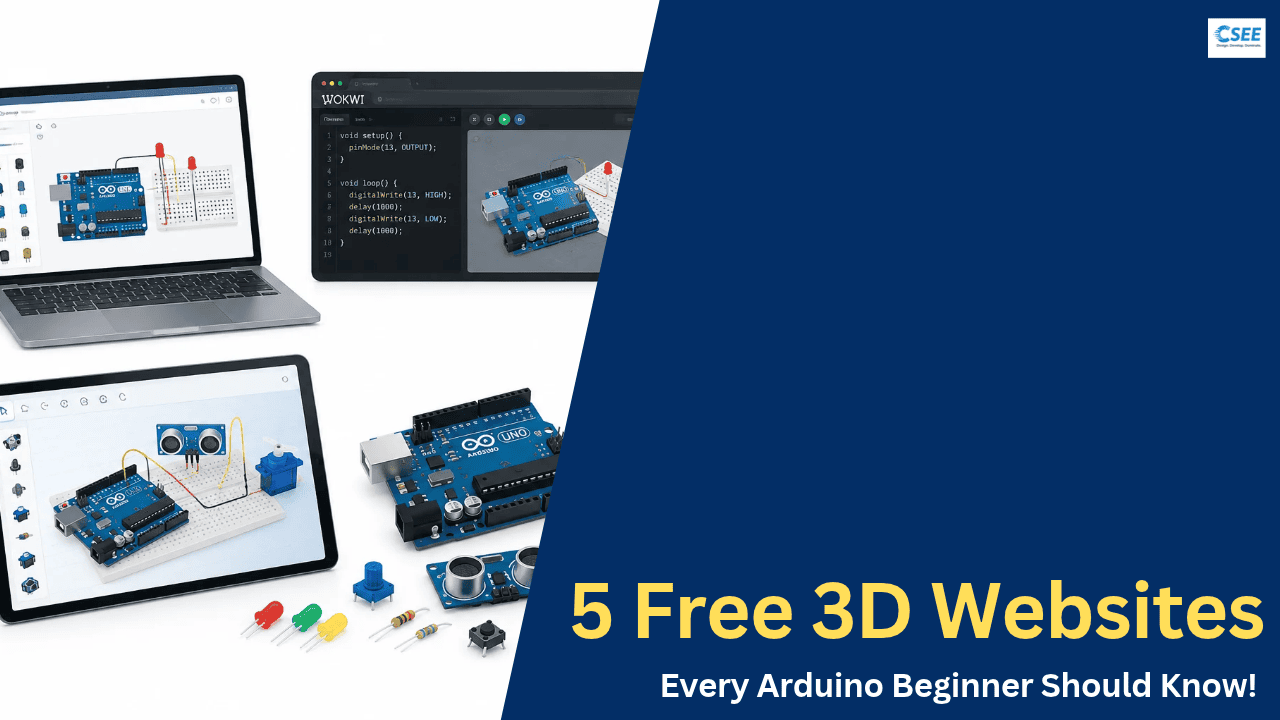
5 Free Websites to Learn Arduino in 3D 🚀
I struggled a lot during my college days just to learn Arduino. Understanding electronics and circuit connections was not easy back then. I wish these interactive websites had existed when I was a student.
If you are an engineering student, an electronics enthusiast, or a complete beginner, these five websites let you explore Arduino boards, understand components, wire circuits virtually, test LEDs and sensors, and run code, often without any physical hardware. You learn by experimenting rather than only reading theory or watching tutorials.
Why simulation changes everything
Learning Arduino traditionally means buying a board, a breadboard, jumper wires, LEDs and resistors, then debugging wiring mistakes that look identical to code mistakes. A simulator removes the cost and the risk. A wrong connection never burns a part, and you can undo any experiment instantly.
| Question | Physical hardware | Online simulator |
|---|---|---|
| Cost to start | Board, cable, parts | Free account or none |
| Risk of damage | Wrong wiring can break parts | None |
| Speed to try an idea | Minutes to hours | Seconds |
| Real-world feel | Full: noise, heat, timing | Approximate |
| Sharing your work | Photos and videos | A link |
Arduino in five minutes
An Arduino is a small programmable board. You write a program (called a sketch), upload it, and the board reads inputs such as buttons and sensors, then controls outputs such as LEDs and motors. The classic Arduino Uno uses the ATmega328P chip.
| Specification | Arduino Uno (R3) | What it means for you |
|---|---|---|
| Microcontroller | ATmega328P | The “brain” that runs your sketch |
| Operating voltage | 5 V | Logic HIGH is about 5 V |
| Digital I/O pins | 14 (6 can do PWM) | Buttons, LEDs, relays |
| Analog inputs | 6 | Sensors such as potentiometers |
| Flash memory | 32 KB | Space for your program |
| SRAM | 2 KB | Space for variables while running |
| Clock speed | 16 MHz | 16 million cycles per second |
The five websites
1. Tinkercad Circuits Best first stop
Tinkercad Circuits, from Autodesk, lets you drag components onto a workspace, wire them on a virtual breadboard, write code (blocks or text) and press Start Simulation. It includes an Arduino Uno, LEDs, resistors, buttons, servos, ultrasonic sensors and more. A free account is needed.
Why beginners like it
- The block editor shows how a program flows before you learn syntax.
- Components glow, move or beep when the simulation runs.
- Wire colours and pin labels are clear.
Gentle learning curve, huge library of tutorials, easy sharing.
Fewer boards and libraries than advanced simulators.
2. Wokwi Best for real code
Wokwi simulates Arduino, ESP32, Raspberry Pi Pico and other boards right in the browser. You edit real C++ in a code editor, use libraries, and watch the circuit respond. Its serial monitor works like the real one, which makes debugging realistic.
Why it stands out
- Supports many boards beyond the Uno, useful once you move to IoT.
- Projects are shareable with a link.
- A wide range of parts: displays, sensors, motors.
Close to professional workflow, great for ESP32 and IoT.
Wiring is defined in a diagram file, which feels less visual at first.
3. Tinkered 3D + AI simulator
Tinkered is a free browser-based 3D circuit simulator that presents itself as the next step after Tinkercad. You describe a project in plain English, and it suggests components, wiring and firmware. You can also wire everything by hand in the 3D editor. You create an account to start, and nothing needs installing.
What it offers (according to its own site)
- AI circuit generation: type what you want to build and iterate by chatting instead of redrawing.
- Realistic simulation: it describes cycle-accurate AVR emulation and SPICE-style analog modelling, so wrong resistors or shorts show up before you touch hardware.
- Many boards: Arduino Uno, Nano and Mega, ESP32, Raspberry Pi Pico, STM32, Teensy and micro:bit, with 3D models you can rotate and zoom.
- Deploy step: a one-click flash to supported real boards.
Good first test
Ask it for “an LED that blinks once per second”, then compare the generated wiring with the blink circuit in this article. Check that you can explain every wire it made.
Broad board support, realistic simulation, fast start with AI help.
AI can hide the learning: always ask why each part is there. Needs a sign-up, and feature claims are the site’s own.
4. Jocam3D Multi-board + instruments
Jocam3D is a free Circuits & Arduino Simulator from Jordan Automation, a 3D printing store in Amman. You build on a virtual breadboard, pick a board, write code in blocks or text, and press Start simulation. It works best on a computer: right-drag to pan and scroll to zoom.
How it works
- Drag a board and parts onto the workspace, or open a starter circuit.
- Click one pin, then another, to wire. Parts pushed into breadboard holes connect automatically.
- Open Code and program with blocks or text.
- Press Start simulation, then press buttons, turn knobs and change sensor readings.
Why it is useful for learning
- Real Arduino code: sketches compile with the official Arduino toolchain and run on a simulated ATmega328P. Libraries such as Servo, LiquidCrystal I2C and Adafruit NeoPixel work.
- Electrical behaviour: an LED without a resistor or a short circuit acts the way it would on a desk.
- More than Arduino: ESP32 and Raspberry Pi Pico in MicroPython, and Raspberry Pi in Python, with breakpoints and single-stepping.
- Instruments: serial monitor, multimeter and oscilloscope.
- Parts: LEDs, buttons, potentiometers, buzzers, servos, NeoPixels, 16×2 I2C LCD, seven-segment displays and light, temperature, ultrasonic and motion sensors.
- Case in 3D: open a matching enclosure in its 3D Designer for printing, and teachers can run a class with a join code.
Free, real firmware, measuring instruments, multiple boards, classroom tools.
Arduino sketches compile on a server, so you may wait a few seconds. Desktop is recommended over phones.
5. Learn Arduino Interactive favourite
Out of the five, this is the one I found really good for learning Arduino interactively: learn-arduino-red.vercel.app. It is a 3D Arduino Uno you can explore, wire up and run, designed by Dilum Sanjaya. It describes itself as 16 free beginner lessons.
What you can do there
- Explore the board in 3D: drag or use W, A, S, D to pan, Q and E to rotate, and scroll to zoom.
- Study each part: panels for Overview, Pinout, Example and Specifications.
- Follow lessons: wire LEDs, buttons, sensors, motors and servos, then run the code and watch it work. A progress counter tracks your lessons.
- Check results: a built-in serial monitor shows output while the simulation runs.
- Navigate quickly: sections for Lessons, Components, Simulator and Settings, with a language switch.
Why it fits beginners
It focuses on one board, the Uno, so nothing distracts you. You see where each pin is before you wire it, which is the exact thing that confused many of us in college. Move on to Wokwi or Tinkered when you want other boards.
Clear 3D pinouts, guided lessons, beginner-friendly, no setup.
Uno-focused, so less range than Wokwi or Tinkered. Use a desktop for the best view.
Quick links
| Website | Link |
|---|---|
| 1. Tinkercad Circuits | tinkercad.com |
| 2. Wokwi | wokwi.com/arduino |
| 3. Tinkered | tinkered.ai/tinkercad |
| 4. Jocam3D | jocam3d.com/en/tools/circuits |
| 5. Learn Arduino (Interactive 3D) | learn-arduino-red.vercel.app |
| Official Arduino site | arduino.cc |
Side-by-side comparison
| Website | Best for | Coding | Visual style | Try it when |
|---|---|---|---|---|
| Tinkercad Circuits | First circuits | Blocks + text | Breadboard view | You are brand new |
| Wokwi | Real sketches, ESP32 | C++ editor | Diagram view | You can already blink an LED |
| Tinkered | AI-assisted builds, many boards | Generated firmware | 3D editor | You want to go beyond Uno |
| Jocam3D | Breadboard practice, instruments | Blocks, C++, MicroPython | Breadboard view | You want a multimeter and scope |
| Learn Arduino | Guided lessons on the Uno | Run lesson code | 3D board | You want to see pins and parts first |
Your first circuit: blink an LED
Every platform above can run this. An LED needs a resistor so it does not draw too much current. With a 5 V supply, an LED dropping about 2 V and a target of 20 mA, the resistor is (5 − 2) ÷ 0.02 = 150 Ω. Use the next common value, 220 Ω, for safety.
void setup() {
  pinMode(13, OUTPUT);   // pin 13 drives the LED
}

void loop() {
  digitalWrite(13, HIGH); // LED on
  delay(1000);            // wait 1 second
  digitalWrite(13, LOW);  // LED off
  delay(1000);
}
A learning path that works
Common mistakes and fixes
| Symptom | Likely cause | Fix |
|---|---|---|
| LED never lights | Reversed polarity | Flip the LED |
| LED very dim | Resistor too large | Try 220 Ω to 470 Ω |
| Button acts randomly | Floating input | Use INPUT_PULLUP |
| Code will not compile | Missing semicolon or brace | Read the first error line |
| Serial text is garbled | Baud rate mismatch | Match Serial.begin to the monitor |
How to pick your favourite
- Build the blink circuit on all five sites.
- Note how long each took and where you got stuck.
- Check whether you understood why it worked, not just that it worked.
- Keep one tool for practice and one for exploring.
Who benefits most
Students of ECE, EEE, Embedded Systems and IoT will find these tools turn abstract textbook diagrams into something they can touch and break safely. Start free, experiment daily, and explore them to find your favourite.